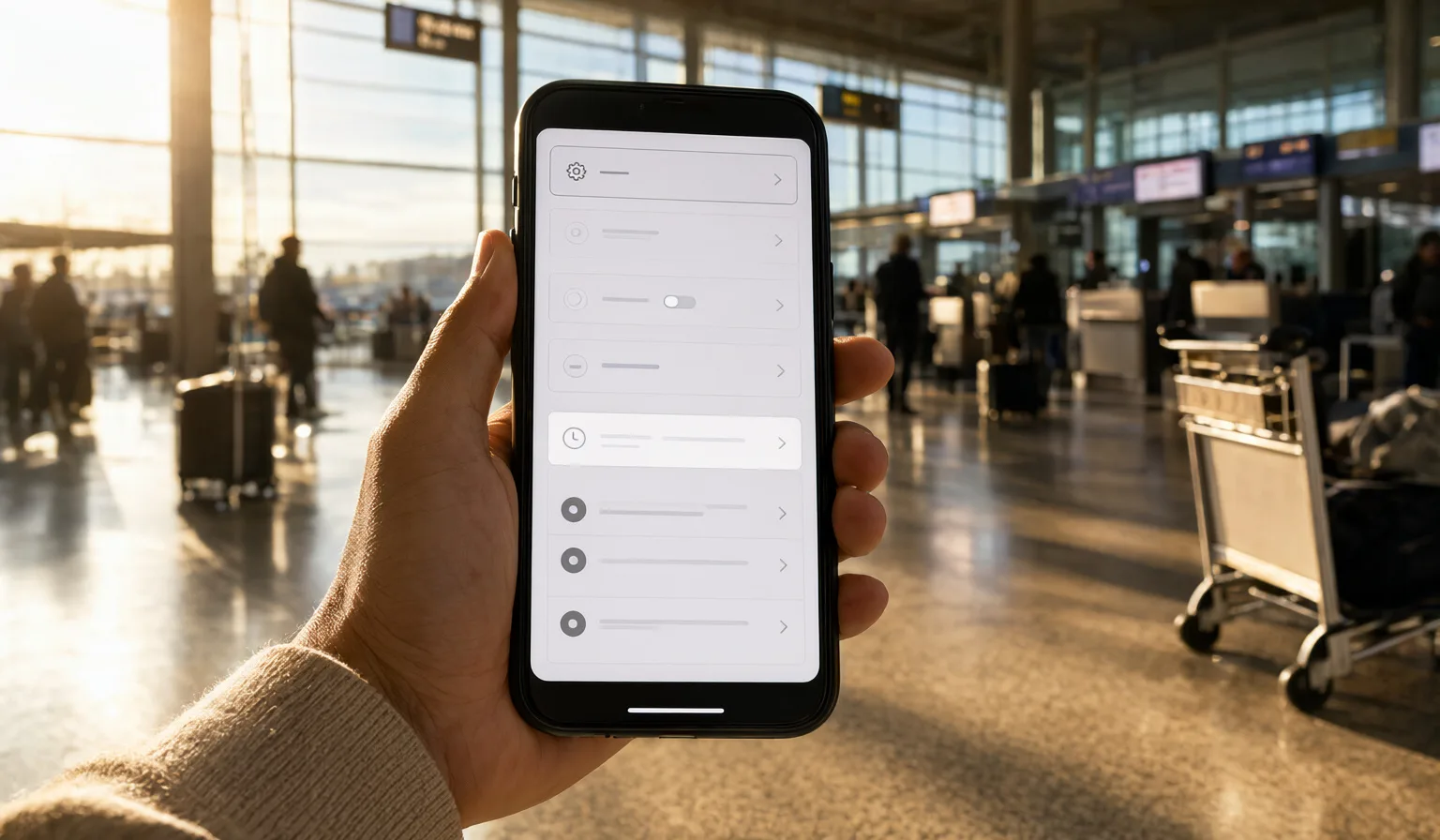

Most people find out whether their phone supports eSIM at the worst possible moment. At the gate, on hotel Wi-Fi, or standing in a foreign arrivals hall trying to buy a plan that their phone, it turns out, cannot use.
The frustrating part is that the answer was always one minute away. You can check right now, on your sofa, and it takes about 30 seconds. Here is how.
The fastest check: dial *#06#
Open your phone's dialler, the same keypad you use to make a call, and type:
*#06#
You don't need to press call on most phones; the screen changes on its own. You will see a list of identification numbers for your device. One of them is the IMEI, which every phone has.
What you are looking for is a line labelled EID. It is a long string of digits, and it only appears on phones that have eSIM hardware built in.
- EID is there: your phone has the hardware for eSIM.
- No EID, only IMEI: your phone almost certainly does not support eSIM.
That's it. That is the 30-second check.
One caveat: don't rely on the model name alone. The same phone model can ship with or without eSIM depending on the market it was made for, so check your actual device, not a spec sheet or a friend's identical phone.
The second check: look in your settings
If dialling codes feels odd, or you want to double-check, your settings menu tells the same story.
On iPhone: go to Settings, then Mobile Data (called Cellular in some regions). Look for an option to add an eSIM. If that option exists, your phone supports it.
On Android: go to Settings, then Network & Internet (the exact wording varies by manufacturer). Look under your SIM or mobile network settings for an option to add an eSIM or a digital SIM. If you can see a way to add one, you have support.
Android menus differ more between brands than iPhones do, so if you don't find it immediately, try searching "eSIM" or "SIM" in the settings search bar at the top.
Hardware isn't the whole story: check for a carrier lock
Here is the part people miss, and it is the one that causes the most surprises abroad.
A phone can have eSIM hardware and still refuse to use an eSIM from anyone other than your home carrier. That happens when the phone is locked to a carrier, which is common with devices bought on an instalment plan or bundled with a contract.
A locked phone will show the EID. It will show the "add eSIM" option in settings. And then it will reject the eSIM when you try to install one from a different provider.
So add one more step to your check: confirm your phone is unlocked. You can usually find this in your settings (iPhones show a "No SIM restrictions" status under About), or by asking your carrier directly. If the phone is locked and you have finished paying it off, most carriers will unlock it on request, but that process can take days. Which brings us to the last point.
Do this at home, not at the airport
Every step above is easy. None of it is easy under pressure.
If your phone turns out not to support eSIM, you want to know weeks before departure, while you still have time to plan around it: bring a physical SIM, borrow a device, or sort out roaming with your carrier.
If your phone is locked, you want to start the unlock request now, not from a boarding queue, because carrier unlocks are rarely instant.
And if everything checks out, you get something just as valuable: one less thing to think about when you travel. You can set up your travel eSIM calmly, before you leave; our step-by-step installation guide walks you through it, and you land with data already waiting.
The takeaway
Before any trip planning, run this quick sequence:
- Dial *#06#. An EID number means your phone has eSIM hardware. Check the device in your hand, not the model name.
- Check settings. iPhone: Mobile Data. Android: Network & Internet. Look for an option to add an eSIM.
- Confirm the phone is unlocked. Hardware support doesn't help if a carrier lock blocks other eSIMs.
- Do it weeks ahead. Fixes like carrier unlocks take time.
Thirty seconds on your sofa now beats thirty stressful minutes at the gate later. Check your phone today, and the rest of your trip planning gets simpler. Once you know your device is ready, you can browse plans by destination, or look at a global eSIM if your trip crosses several countries.