

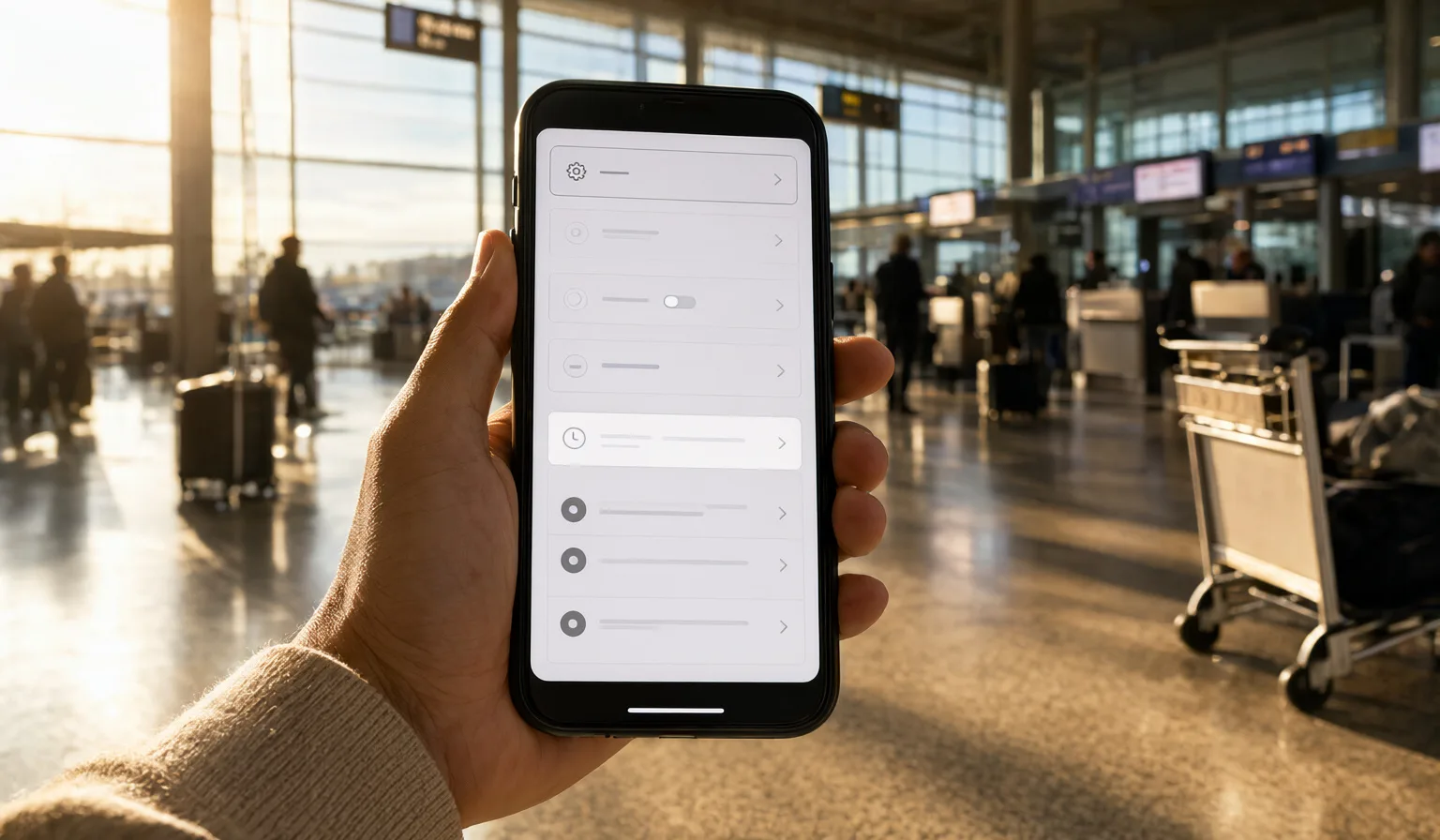
You land, the eSIM shows full bars, and nothing loads. Maps spins. Messages won't send. The airport Wi-Fi wants your email address and your patience.
Before you reinstall anything or assume the plan is broken, check one setting. In most cases, the fix takes about ten seconds.
Why full bars can still mean no internet
Signal bars only tell you that your phone found a network. They say nothing about whether that network is willing to carry your data.
Here's the part that trips people up: most phones ship with data roaming switched off by default. That's a sensible safety net for your home SIM, because it protects you from surprise charges when you cross a border.
But travel eSIMs work differently. They typically connect through partner networks in the country you're visiting, and from the phone's point of view, that counts as roaming. So the phone connects to the tower, shows you bars, and then quietly refuses to pass any data because the roaming toggle for that line is off.
The result is exactly what you're seeing: a connection that looks healthy and does nothing.
Where to find the toggle
The setting lives in slightly different places depending on your phone.
On iPhone: Settings > Cellular > tap your eSIM line > turn on Data Roaming.
On Android: Settings > Network & internet > SIMs > tap your eSIM > turn on Roaming. (Menu names vary a little between manufacturers, but "SIMs" or "Mobile network" is usually where it hides.)
Flip it on, wait a few seconds, and try loading a page. For most people, that's the whole repair.
One important detail: pick the right line
If your phone has both your home SIM and a travel eSIM active, make sure you turn roaming on for the eSIM line specifically — not your home SIM.
This matters for two reasons:
- Turning roaming on for your home SIM can trigger roaming charges on your regular plan, which is usually the exact thing you bought a travel eSIM to avoid.
- Turning it on for the wrong line won't fix your data anyway, so you'd still be staring at a spinning wheel.
Each line has its own toggle. Open the settings for the eSIM by name, confirm you're looking at the right one, and switch roaming on there. Leave your home SIM's roaming off unless you have a reason to use it.
While you're in that menu, it's also worth confirming that your eSIM is selected as the line for mobile data. A phone with two active lines will only route data through one of them at a time.
Still stuck? Try the airplane mode trick
If roaming is on for the right line and nothing loads, flip airplane mode on, wait a few seconds, and flip it back off.
This forces the phone to drop its current connection and search for networks again from scratch. Phones sometimes cling to a network or a stale connection state, especially right after landing, and a fresh search clears that up. It's the mobile equivalent of turning it off and on again — unglamorous, frequently effective.
If you're still offline after that, it's worth checking the basics: is the eSIM turned on as a line at all, and does your plan cover the country you're in? You can check which countries your plan covers on our destinations page. But in our experience, the roaming toggle is the first suspect, and usually the guilty one.
The ten-second checklist
Next time you land and the data won't flow, run through this in order:
- Data roaming on? For the eSIM line specifically.
- Right line selected for data? The eSIM, not your home SIM.
- Airplane mode flip. On, pause, off.
Three checks, well under a minute, and no airport Wi-Fi sign-up form required.
Do it before you fly
The easiest version of this fix is the one you do at home. Before your trip, open your settings, find your eSIM line, and turn data roaming on while you're still on familiar Wi-Fi and not standing in an arrivals hall with a bag on each shoulder.
If you're setting up an eSIM for the first time, our installation guide walks through the whole process step by step, roaming toggle included. And if your trip spans several countries, a global eSIM saves you from repeating this setup at every border.
It's a small bit of prep, but it means the moment you land, your phone just works — which is the whole point.
Got a connectivity question we should cover next? Ask us at @askopenline.